

How to add a feedback widget to Docusaurus
Install PushFeedback in Docusaurus, submit a test report, and choose between a floating feedback button and an inline helpfulness prompt.
A feedback widget lets Docusaurus readers rate a page, leave a comment, and optionally point to the part of the documentation they are talking about.
PushFeedback provides a maintained Docusaurus plugin for the standard floating widget and a React-based setup when you want an inline prompt at the end of documentation pages.
This guide shows how to install the widget, verify that feedback reaches your project, and choose the placement that fits your docs.
Create a PushFeedback project
Start by creating a PushFeedback project.
You will need the project ID when you configure the Docusaurus integration.
Then open the Docusaurus installation guide and follow the setup for your Docusaurus version. The guide has separate installation instructions for Docusaurus 3.x and 2.x.
After adding the plugin configuration, run the Docusaurus site locally or in a preview environment.
You should see the feedback button on your documentation pages.
Submit a test report
Seeing the button is only the first check.
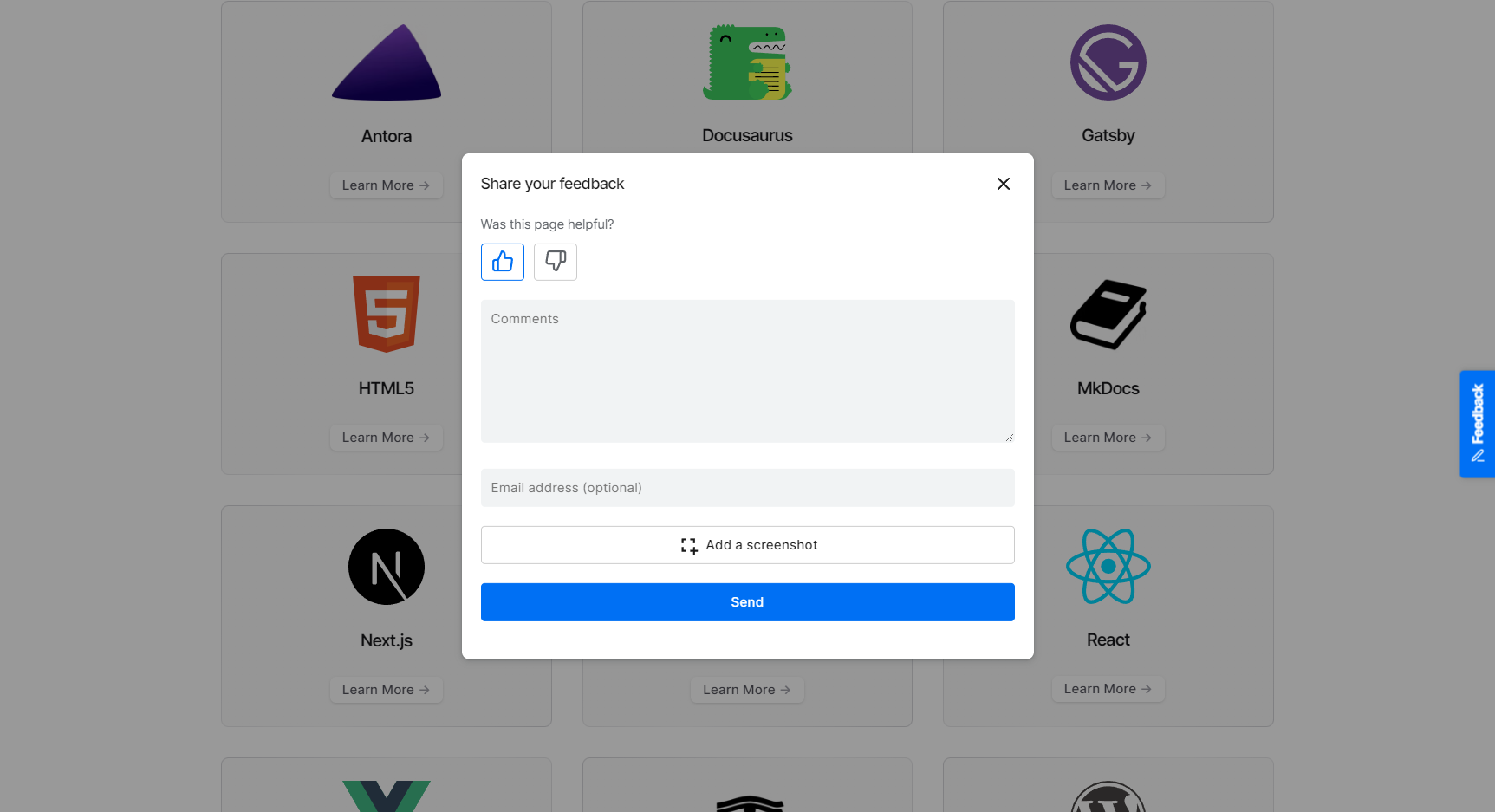
Open a documentation page and submit a test report with a rating and comment, for example:
The authentication example does not explain where the API key should be stored.
Then open the PushFeedback dashboard and confirm that the report arrived with the page context and comment you submitted.
Use a public or test page for the first report. Do not include credentials, tokens, customer information, or other sensitive content in your test.
Once that works, the basic integration is ready.
Choose a floating button or inline prompt
The default Docusaurus plugin adds a floating feedback button.
That works well when readers may want to report a problem anywhere on a long guide, reference page, or troubleshooting article.
An inline prompt is useful when you want to ask for feedback at a specific point in the reading experience, especially at the end of a guide.
For example:
Was this page helpful?
A simple rule is:
| Placement | Use it when |
|---|---|
| Floating button | Readers may need to report a problem anywhere on the page |
| Inline prompt | You want feedback after the reader reaches the end of a task or article |
| Both | You want lightweight end-of-page ratings plus a way to report problems while reading |
The inline Docusaurus setup uses the PushFeedback React package and a Docusaurus footer wrapper. Follow the advanced setup in the Docusaurus installation guide rather than copying the implementation into your own docs and maintaining another version of it.
For help choosing the question itself, see how to use a helpfulness widget in docs.
Add visual feedback when location matters
A comment is enough for many documentation problems.
For example:
This step does not explain which OAuth scope I need.
Visual feedback becomes more useful when the reader needs to identify a specific part of the page, such as:
- a code block
- a diagram
- a table row
- a screenshot
- a rendered UI element
In those cases, an annotation can make the report easier for the documentation team to understand.
You do not need visual feedback for every report. Use it when pointing to the problem adds useful context.
Check the feedback workflow before rollout
Before enabling the widget across your documentation site, submit a few realistic reports and inspect what your team receives.
Check that:
- the feedback comes from the expected page
- the reader comment is preserved
- optional visual context works when you need it
- the report reaches the people who will review it
- the prompt and widget placement make sense on the page
You can then adjust the widget text, position, or inline prompt to match the documentation experience.
Frequently asked questions
Does PushFeedback support Docusaurus 2 and 3?
Yes. The maintained Docusaurus installation guide provides separate installation paths for Docusaurus 2.x and 3.x.
Should I use a floating button or an inline helpfulness prompt?
Use the floating button when readers may need to report a problem while they are reading. Use an inline prompt when you want to ask for feedback after a reader completes a guide or reaches the end of a page.
You can also use both when the two interactions serve different purposes.
Should every feedback report include a screenshot?
No. A comment and page context are enough for many documentation problems. Use screenshots or annotations when the exact location of the problem matters.
What should I test after installation?
Submit a realistic report and confirm that it arrives with the page and feedback context your team needs. Test visual feedback as well if you plan to enable it for readers.
Do I need the advanced React setup?
Not for the standard floating widget. Use the advanced React setup when you want a custom inline feedback experience, such as helpfulness buttons at the end of every documentation page.
Add feedback to your Docusaurus site
Create a PushFeedback project and follow the Docusaurus installation guide for your version.
Start with the standard widget, submit one test report, and add an inline prompt only when it improves the way you want readers to give feedback.