

How to analyze documentation feedback with AI
Use AI to find patterns in documentation feedback, then check the original comments and page context before deciding what to change.
AI can help you review a large set of documentation feedback much faster.
It can summarize comments, group recurring themes, surface representative quotes, and suggest possible improvements.
The useful workflow is simple: let AI find the patterns, then check the original comments and pages before deciding what to change.
Use AI to find recurring patterns
Start with the feedback you want to understand.
You might review:
- feedback from one documentation section
- comments from the last month
- feedback after a documentation rewrite
- negative feedback from a particular page
- comments about one product area or task
A focused question makes the results easier to use.
For example:
What are readers struggling with on our authentication documentation?
PushFeedback AI Reports can summarize selected feedback, identify recurring themes, show representative quotes, and suggest possible actions.
A report might surface themes such as:
- authentication examples are incomplete
- screenshots no longer match the interface
- webhook setup becomes unclear after a particular step
That gives you a shortlist of areas worth reviewing.
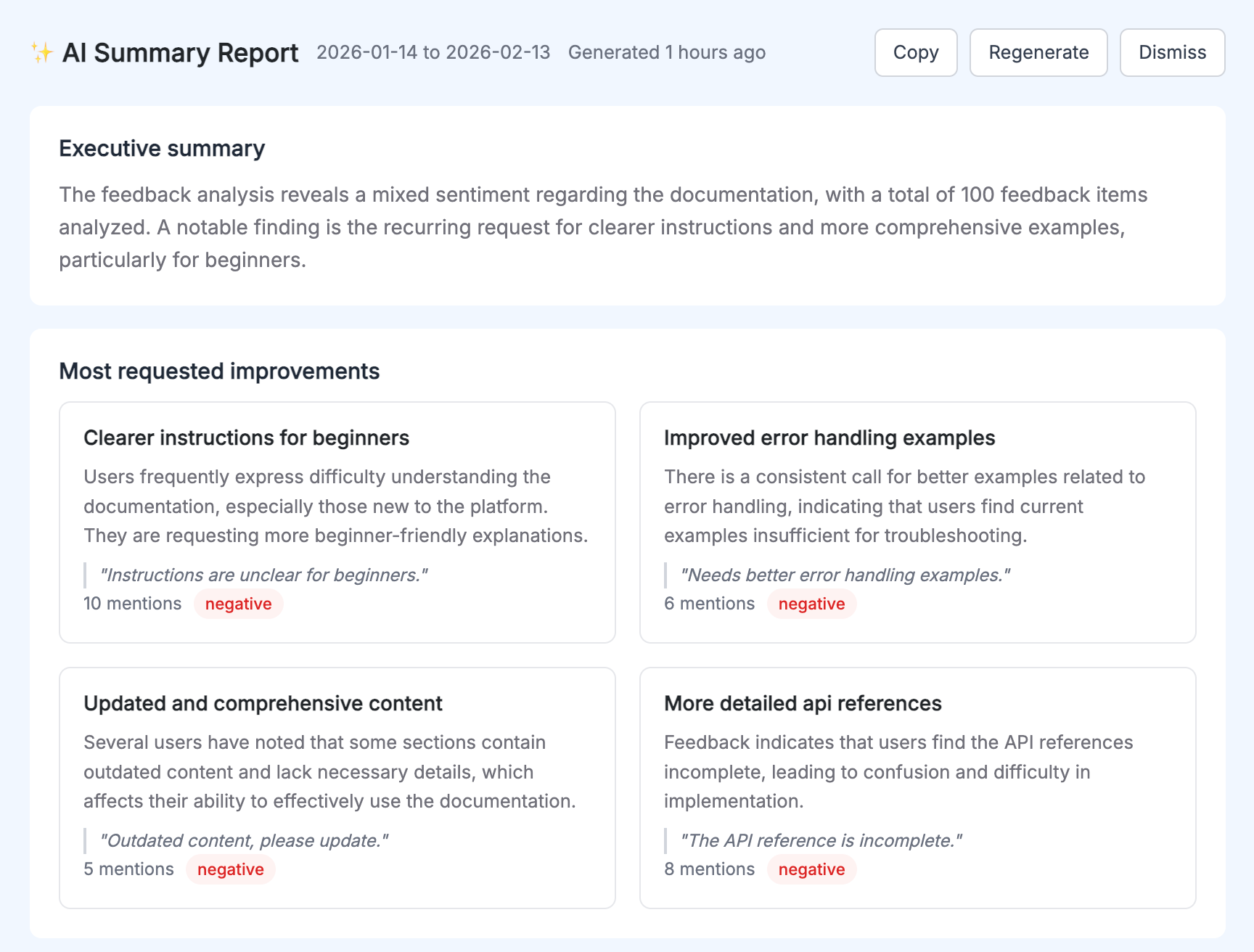
Use the AI report to find patterns, then check the source feedback before deciding what the theme means.
Check the comments behind each theme
An AI theme can group comments that sound related but describe different problems.
Suppose the report says:
Authentication examples are unclear.
The related comments might include:
- "I don't know where the token goes."
- "This example uses an old endpoint."
- "What permissions does this key need?"
Those comments all mention authentication, but they may need different fixes.
One may require a clearer example. Another may need an endpoint update. Another may need a permissions note.
The theme helps you find the cluster. The original comments tell you what is actually happening.
Different wording can also point to the same problem. Comments such as "Where do I put the key?" and "Your example doesn't show the auth header" may both point to a missing authentication step.
Look for repeated problems, not just repeated words.
Keep the page context with the feedback
Feedback is easier to understand when you know where it came from.
A comment such as "this example is confusing" becomes much more useful when you also know the reader submitted it from an authentication guide.
PushFeedback keeps ratings, comments, page URLs, and optional screenshots together in the feedback dashboard.
That helps you distinguish between comments that sound similar but refer to different tasks.
| Feedback | Page context | What to check |
|---|---|---|
| "I don't know where the token goes." | Authentication quickstart | Code example or explanation |
| "I can't find this setting." | Webhook configuration | Current instructions and UI |
| "This example doesn't work." | API reference | Example, API behavior, or missing prerequisite |
When the exact location matters, visual feedback can include an annotated screenshot pointing to a code block, diagram, button, form, or other page element.
Use the screenshot as context, then check the current page and task.
Treat AI suggestions as starting points
AI Reports can also suggest possible improvements.
That is useful, but the suggestion still needs to be checked against the page and source comments.
Suppose a report recommends:
Add another authentication example.
You open the page and find that an example already exists. The real problem is that readers are missing a prerequisite immediately above it.
In that case, another example would add more content without fixing the problem.
The right change might instead be:
- make a prerequisite more visible
- update an outdated screenshot
- clarify one instruction
- move an existing example
- fix inconsistent terminology
AI can suggest where to look. The feedback and current page tell you what to change.
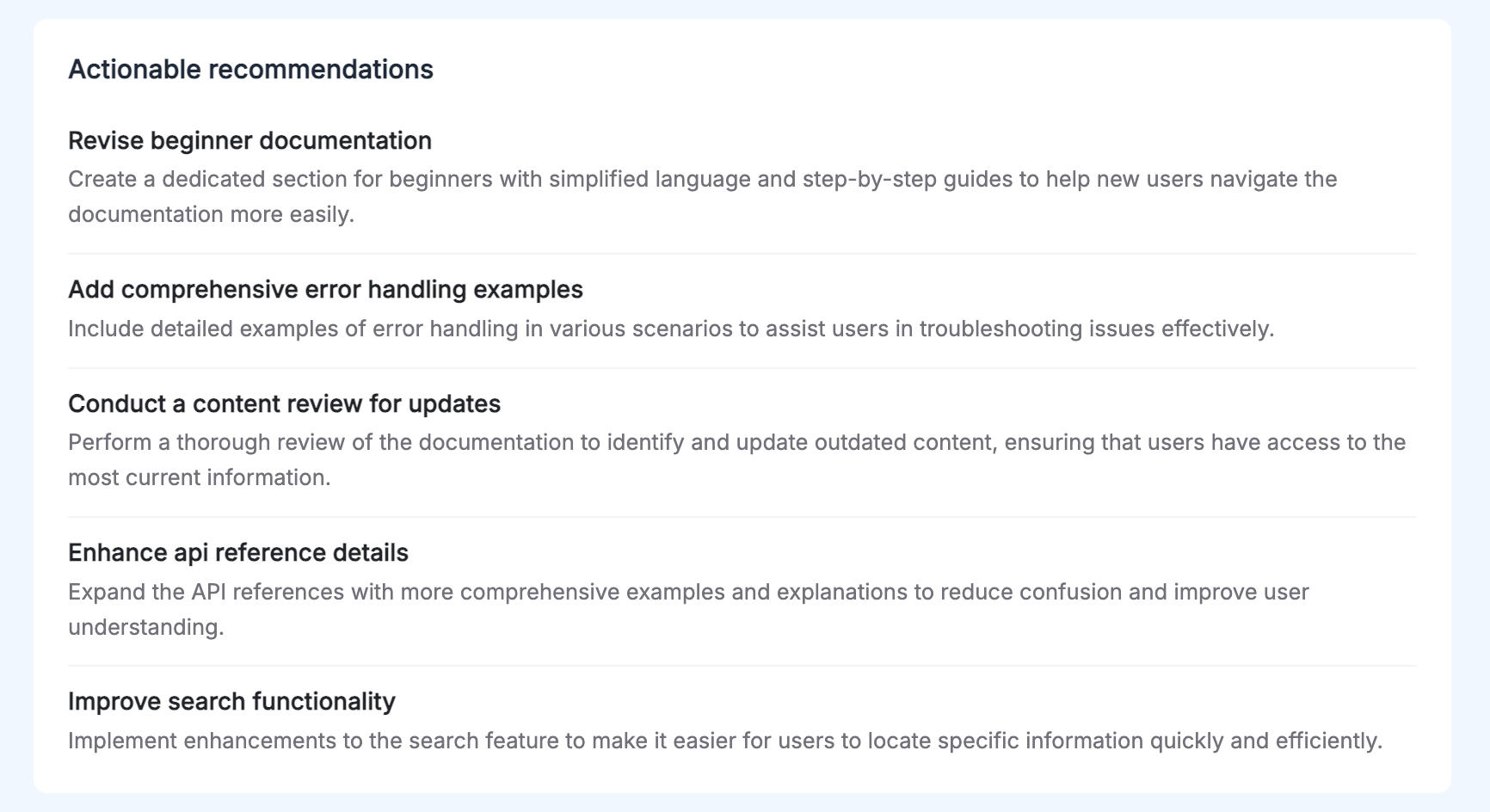
Treat an AI recommendation as a starting point for review, not a change to implement automatically.
Turn the report into a simple review process
You do not need a complicated scoring system.
A practical workflow is:
- Generate the AI report.
- Pick a recurring theme worth reviewing.
- Open the comments behind it.
- Check the pages those comments came from.
- Make the smallest useful change and keep watching the feedback.
That is enough to turn an AI summary into useful documentation work.
Frequently asked questions
Can AI analyze documentation feedback automatically?
Yes. AI can summarize feedback, group recurring themes, surface representative comments, and suggest possible actions. Check those results against the original comments and pages before deciding what to change.
Can AI decide which documentation change to make?
No. It can suggest a possible improvement, but the team should review the source feedback, current documentation, and product behavior first.
Why is page context important?
The same comment can mean different things on different pages. Keeping the page URL and feedback together makes it easier to understand what the reader was actually using.
Should I analyze all feedback at once?
You can use a broad report to spot overall patterns. For a specific problem, filter by page, product area, time period, or documentation change so the results are easier to act on.
Use AI for the first pass
Use AI to summarize documentation feedback and find recurring patterns.
Then open the original comments, check the pages they came from, and decide what actually needs to change.
If you want to collect page-level feedback and review it with AI-assisted reports, create a PushFeedback project and see AI Reports.