

How to turn documentation feedback into Jira issues
Connect PushFeedback to Jira Automation, choose which documentation feedback should become work, and verify that each issue contains enough context to investigate.
Not every thumbs-down needs a Jira issue.
Jira is useful when a feedback report contains enough context for someone to investigate and act on it. A rating with no explanation can stay in the feedback queue until there is more evidence.
With PushFeedback, you can send documentation feedback to Jira through a Jira Automation incoming webhook. The Jira rule then creates the work item using the project, issue type, summary, and description you configure.
Connect PushFeedback to Jira Automation
You need a PushFeedback project and a Jira Cloud workspace with access to Automation.
The Jira integration is available on PushFeedback Professional and Unlimited plans.
Set it up in two parts.
1. Create the Jira Automation rule
In Jira:
- Open Project settings → Automation.
- Create a rule with an Incoming webhook trigger.
- Add a Create work item action.
- Choose the Jira project and issue type.
- Set the summary to
{{webhookData.summary}}. - Set the description to
{{webhookData.description}}. - Enable the rule.
- Copy the incoming webhook URL and secret.
Keep the webhook URL and secret somewhere secure.
2. Connect the rule in PushFeedback
In PushFeedback:
- Open the project.
- Go to Settings → Integrations → Jira.
- Paste the Jira webhook URL.
- Add the webhook secret if your Jira automation requires it.
- Save the integration.
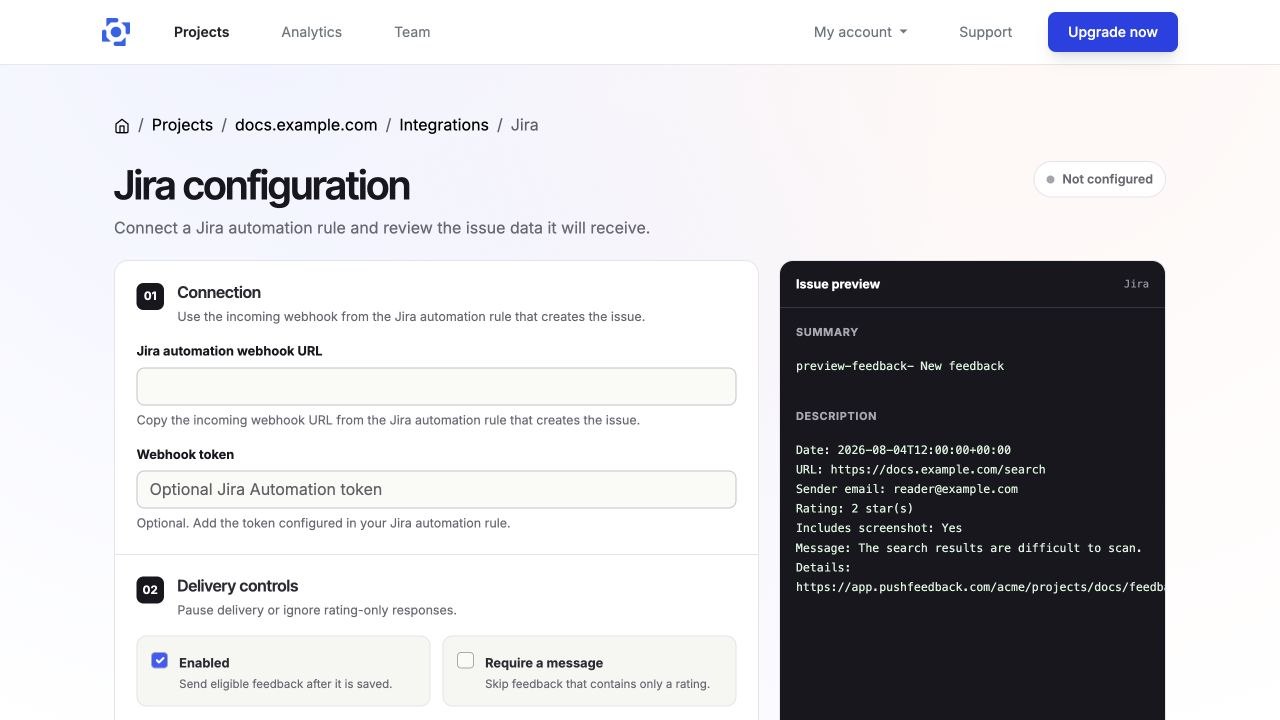
See the Jira Automation integration guide for the current Jira and PushFeedback setup.
Decide which feedback should become a Jira issue
Sending every negative rating to Jira usually creates noise.
A useful Jira issue should give the receiving team enough context to understand what needs investigation.
For documentation feedback, that usually means having some combination of:
- the page URL
- the reader's comment
- the rating or feedback type
- enough context to identify the problem
- a link back to the original feedback
For example:
Page: /api/authentication

Reader feedback:
"I cannot find where the required scope is set."

Jira issue:
Documentation: clarify API token scope configuration

Description:
Reader reported that the authentication page does not make it clear where the required scope is configured.

Source: /api/authentication
Original feedback: [PushFeedback link]
That gives the documentation team somewhere to start.
A thumbs-down with no comment may still be useful as a signal in PushFeedback, but it does not necessarily need to become Jira work immediately.
Test one report before enabling the workflow broadly
After configuring the integration, submit a test report from a documentation page.
Use a public or test page and avoid credentials, tokens, customer information, or sensitive screenshots.
Then open the Jira issue and check that the information your team needs actually arrived.
| Check | What to verify |
|---|---|
| Issue created | The feedback produced a work item in the intended Jira project |
| Summary | The issue title is understandable in the backlog |
| Description | The reader comment and relevant context are present |
| Page | The team can identify which documentation page triggered the report |
| Original feedback | The team can return to PushFeedback when more context is needed |
| Issue type | The report lands in the type your team intends to use |
If the issue is missing important context, change the Jira rule or feedback workflow before sending real reports into the backlog.
Keep incomplete feedback in PushFeedback
Not every report needs immediate action.
You may receive:
- ratings without comments
- vague comments
- duplicate reports
- feedback that needs more investigation
- product issues that do not belong in the documentation backlog
Keep those reports available in PushFeedback until someone decides what they mean.
The feedback management tool lets teams review, filter, archive, and export collected feedback.
Once a report has enough context and a clear next action, Jira can become the place where the team tracks the work.
Separate documentation issues from product issues
A reader can report something from a documentation page even when the underlying problem is in the product.
For example:
- the docs describe the intended API response, but the live API behaves differently
- a UI control shown in the docs is missing from the product
- an example fails because of a product regression
- the reader is requesting unsupported behavior rather than reporting unclear documentation
Do not automatically rewrite the page because the report arrived through a documentation feedback widget.
Verify the current behavior first, then create the Jira issue for the team that actually owns the problem.
For a broader workflow for reviewing feedback before assigning work, see how to collect and use documentation feedback.
Troubleshoot feedback that does not reach Jira
If a test report does not create a Jira issue:
- Check the webhook URL in PushFeedback.
- Check the webhook secret if you configured one.
- Confirm that the Jira Automation rule is enabled.
- Open the Jira Automation audit log and look for the failed execution.
- Submit another test after correcting the configuration.
If Jira receives the request but creates an incomplete issue, review the Create work item mapping rather than changing the PushFeedback installation.
The Jira integration documentation contains the current setup and troubleshooting steps.
Frequently asked questions
Should every negative documentation rating create a Jira issue?
No. Send reports to Jira when they contain enough context for someone to investigate or act on them. Keep rating-only and unclear reports in PushFeedback until there is enough evidence to create useful work.
Can PushFeedback create Jira issues directly?
PushFeedback sends the feedback to a Jira Automation incoming webhook. The Jira Automation rule creates the work item using the project, issue type, and field mapping you configure.
What information reaches Jira?
The Jira issue uses the information delivered through the webhook and the mappings in your Automation rule. Test the final issue to make sure your team receives the page, feedback context, and link back to the original report that it needs.
What if the feedback describes a product bug?
Verify the current product behavior and route the Jira issue to the appropriate owner. Feedback submitted from a documentation page does not automatically make the problem a documentation issue.
Which PushFeedback plans include Jira?
Jira integration is available on Professional and Unlimited plans. See PushFeedback pricing for current plan details.
Test the Jira workflow before relying on it
Configure the incoming webhook, submit one realistic feedback report, and inspect the Jira issue your team receives.
If the issue gives the receiving team enough context to start the right investigation, the workflow is ready to use. Keep incomplete reports in PushFeedback until they are clear enough to become actionable work.
Create a PushFeedback project and follow the Jira integration guide to connect your first project.